
If you keep hitting your Claude usage limit before the day is over, look at what you are using it for. Routine drafts, summaries, and quick rewrites do not need the heaviest model.
You would not use a sledgehammer to hang a picture. The same idea applies here. Match the model to the job, and you will have more room left for the work that actually needs the extra care.
I am Ran Armon, an AI trainer in Toronto and the founder of Action AI. These are simple habits that help you get the same work done, without using up your limit on small jobs.
Why people keep hitting the limit
Claude gives you a usage budget for a period of time. How fast you use it up depends on a few things you can control.
The model you pick matters. So does the effort setting, if you have one. A longer chat also uses more of your limit as it grows, because Claude keeps working with earlier parts of the conversation. Other features, such as web search or connected tools, can add to it as well.
None of this means you should do less work. It means you should stop using the biggest setup for the smallest jobs.

Use a lighter model for everyday tasks
For a short email, a quick summary, or a simple rewrite, switch to a lighter model. If you see an effort setting next to the model name, choose a lower one for those everyday tasks. Official Claude help says a lower effort level stretches your usage further, and that a higher effort setting uses more of your limit.
You can change the model or the effort setting from the menu next to the send button. Check it before you start a task, so you are not still on a heavier setup from the last job.
Save the heaviest model for the hard work
When the job is genuinely hard, such as a messy analysis, a careful plan, or a document you need to get right, that is the time to use the heaviest model you have. You can also raise the effort setting if you need a more thorough answer. Use that heavier setup on purpose, not by default.
If you are still deciding on a main tool, I wrote about how to pick the tool that fits your work.
Start a new chat for each new task
A long chat that jumps from an email, to a report, to a completely different question will keep growing. Official Claude help notes that the length of the current conversation affects your usage. It also suggests starting a new conversation if a long chat is using up your limit.
A simple habit is to start a fresh chat for each new task. If you still need a few points from the old chat, ask Claude to summarize them first, then paste only what you need into the new one.
You can copy this prompt:
Please summarize this chat so I can start a new one for the next task.

Include:
- the goal
- the decisions or drafts we already have
- any facts, names, or numbers I should keep
- anything still open

Keep it short, in plain language. Do not add new ideas.
Put related questions in one message
Several short follow-up messages can turn a simple job into a long back and forth. Official Claude help suggests combining related questions into a single message, and reviewing that message before you send it so you need fewer follow-ups.
You can copy a message like this and fill in the brackets:
I need help with a few related tasks for [the job]. Please do them in this order, and keep each answer short and clearly labelled.

1. Draft a [type of message] to [who it is for] about [the topic]. Tone: [plain, professional, or friendly].
2. Give me 3 subject line options.
3. List any details you still need from me before I can send it.

If you are missing a fact, say so. Do not invent details.
A simple way to do this today
- Before you start, check which model is selected, and the effort setting if you see one.
- Use a lighter model, or a lower effort setting, for everyday drafts and summaries.
- Save the heaviest model for the hard work.
- Start a new chat for each new task.
- Put related questions in one message, then check the result yourself before you send it on.
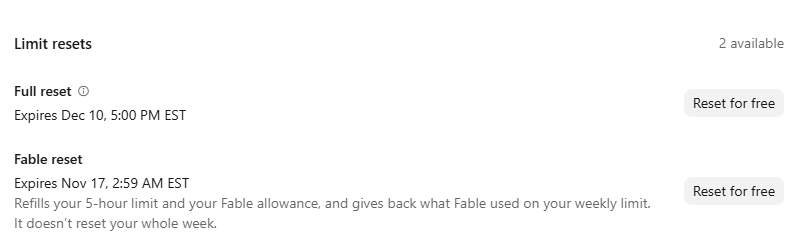
On many paid plans, you can see how much of your limit you have used under Settings, then Usage. Treat the number on your own screen as the guide, because limits depend on your plan and can change.
I wrote more about using one tool on real work, then checking the result, in how to keep up with AI without chasing every new tool.
If you want help practising this on your own work, you can learn more about Action AI’s hands-on AI training for small business teams in Toronto.
What is the last small job you ran on your heaviest model, just because it was already selected?
Work Smarter, Not Harder.